


Jujotech Fusion Remote Expert
Manage remote assistance with your frontline connected workers
Imagine tackling complex industrial challenges, from troubleshooting offshore rig equipment to responding to disaster incidents, all with seamless team collaboration.
That’s the power of Jujotech’s Fusion Remote suite, now seamlessly integrated with Microsoft Teams. Beyond traditional chats and calls, our Fusion Remote Expert integration lets you connect with remote device access and augmented reality (AR) connections, allowing you to show exactly what you see, eliminating the guesswork and errors of verbal descriptions.
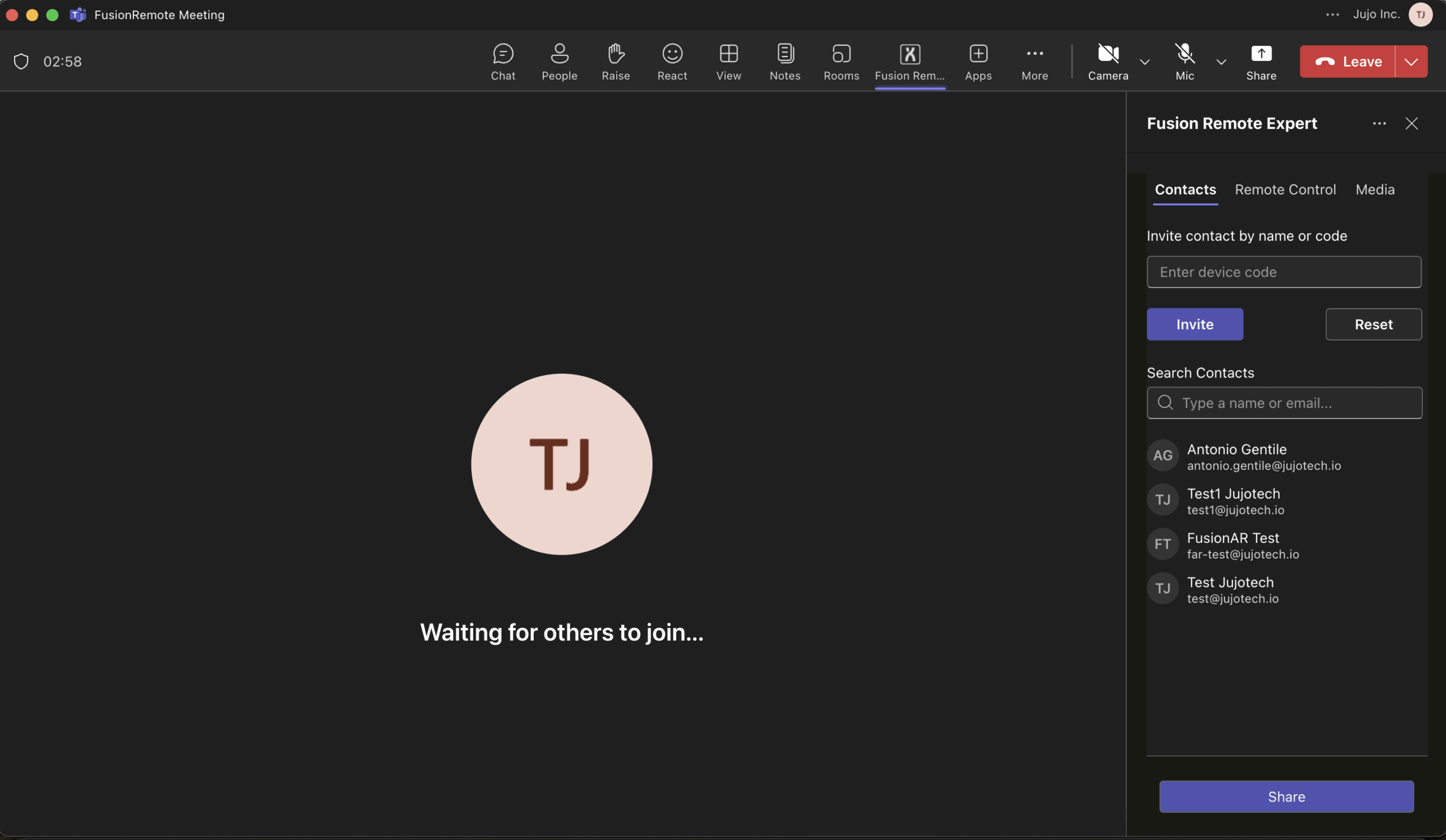
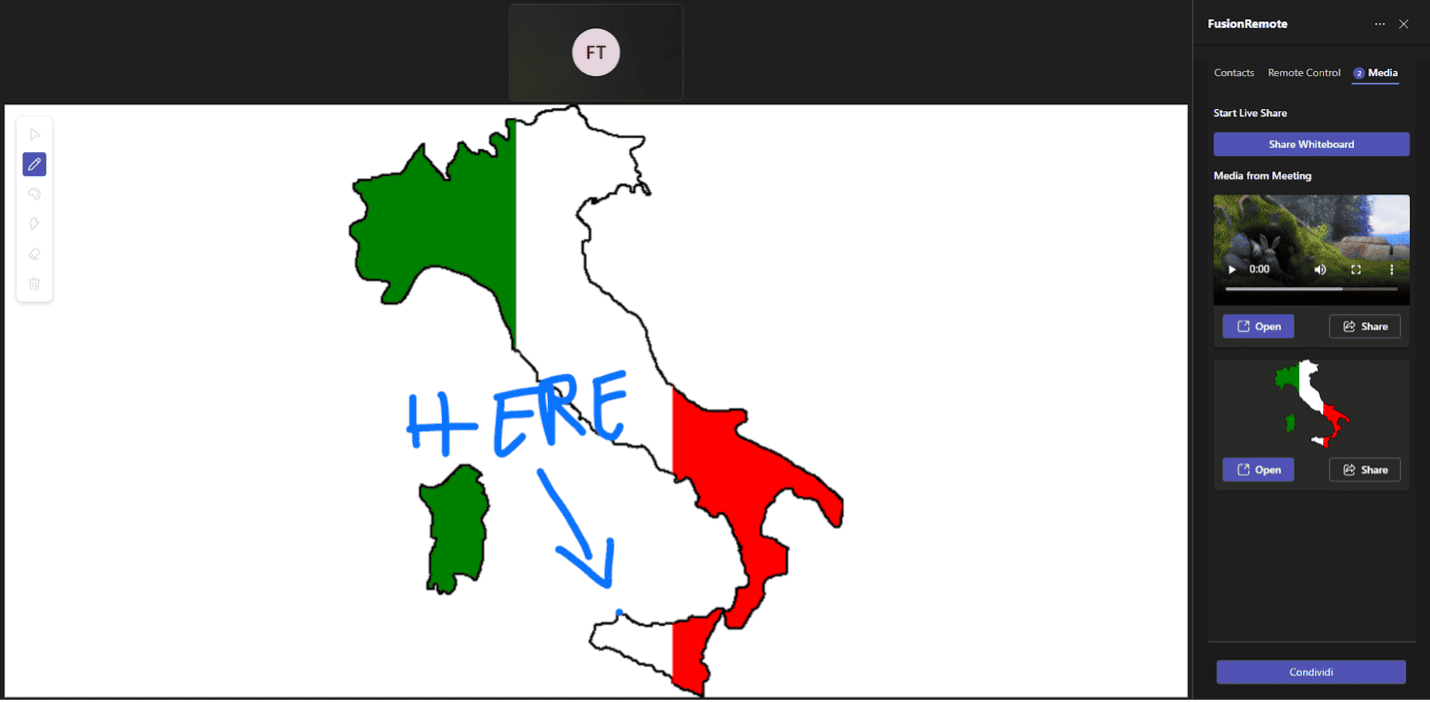
Need to guide a colleague through a physical task? Simply point and draw virtually in their field of view through the shared whiteboard, providing crystal-clear instructions. Plus, bring all your essential tools and resources directly into the Microsoft Teams hub for enhanced productivity and a significant return on investment. To experience the future of industrial remote assistance with Jujotech Fusion Remote Expert, a Fusion Remote subscription is required. Contact us at support@jujotech.com or visit our website at: https://www.jujotech.com/support
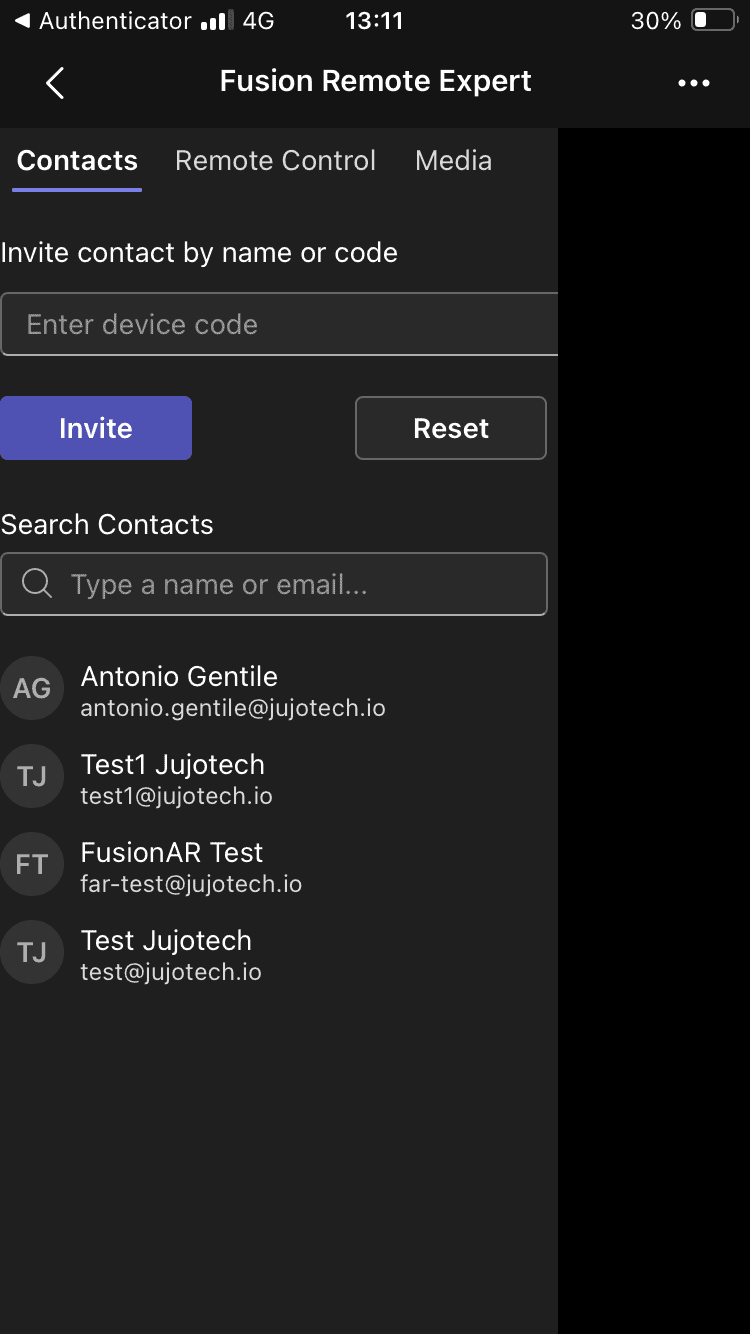
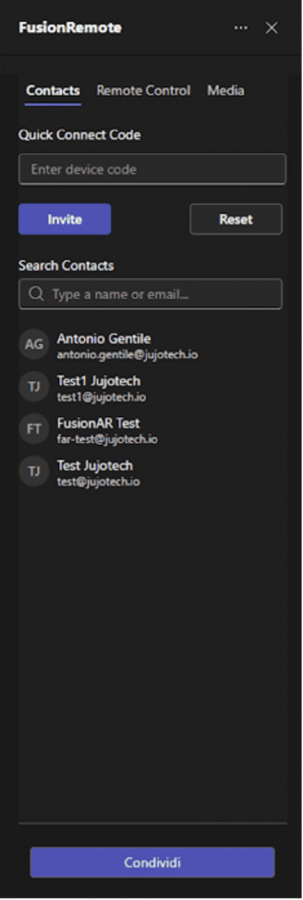
Contact Tab
The Contacts tab is the tool to quickly reach a frontline worker. You can either call him into the meeting, by selecting his email in the list provided from your Microsoft Teams team member list or use a connect code provided by your operator.
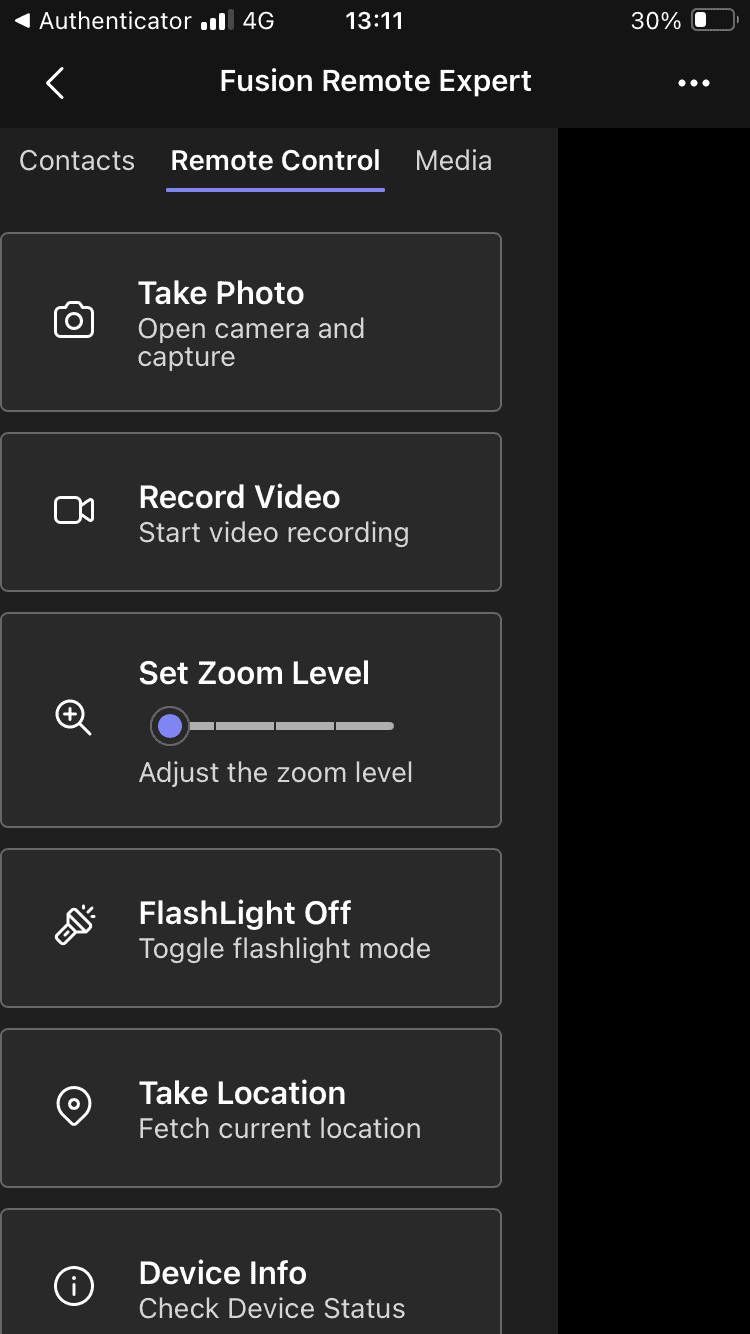
Remote Control Tab
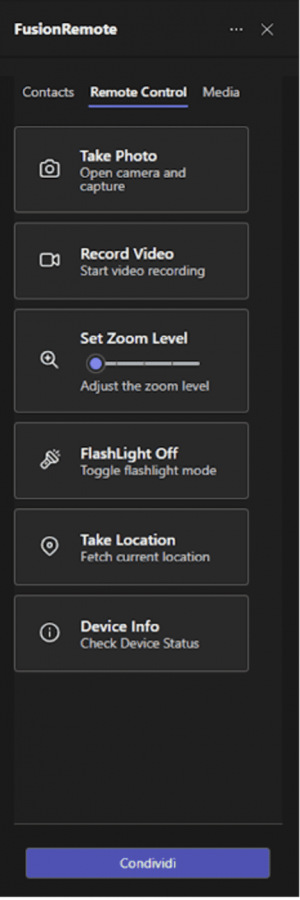
The Remote Controls tab offers telemetry access to your fleet of wearable devices connected into the meeting. Here you can seamlessly execute commands without distracting the field worker from the complex tasks he is handling, all while seeing what he sees. Available commands are:
- Take Photo – To capture a hi-res snapshot of what is being shown in the video stream
- Record Video – To capture a video clip of what is being shown in the video stream
- Set Zoom Level – To zoom into the stream video with 5 levels of magnification
- Flashlight ON|OFF toggle – To switch the headset flashlight on and off
- Take Location – To acquire the precise GPS coordinates of the devices
- Device Info – To access a diagnostic panel on device licensing and operation
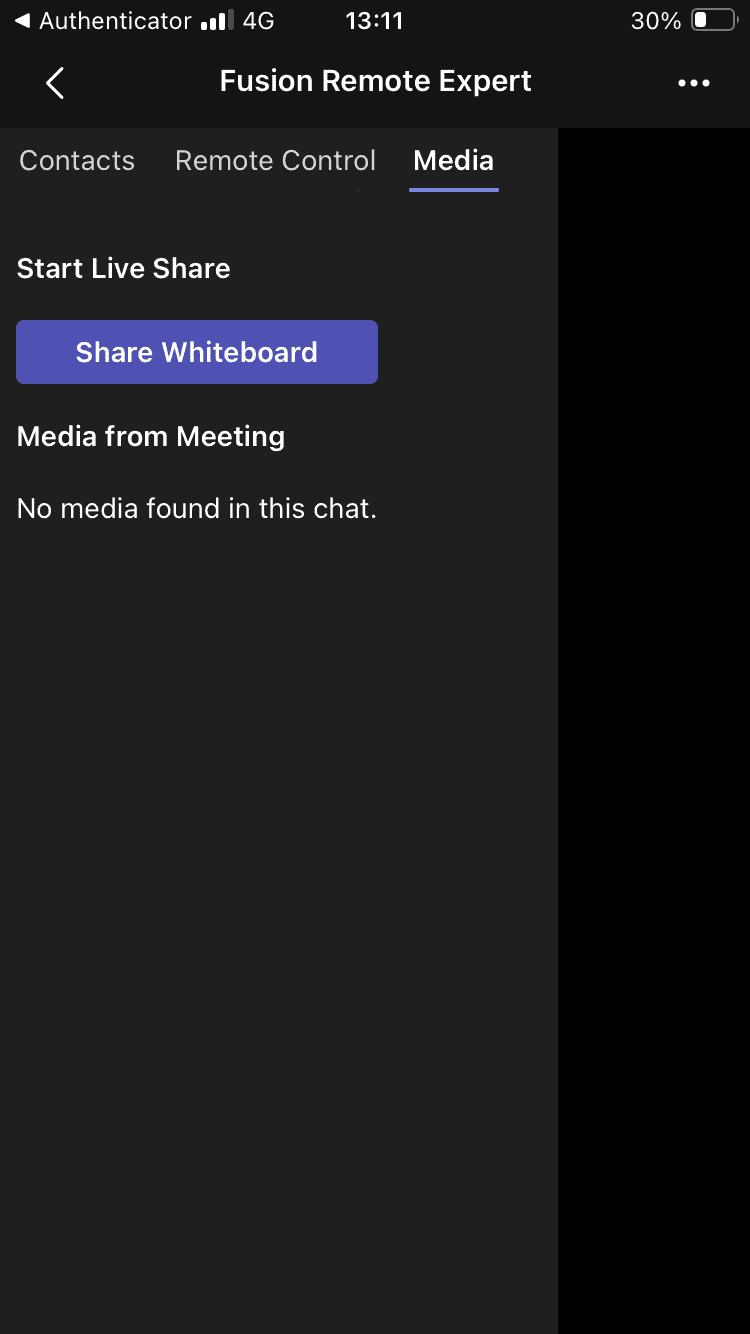
Media Tab
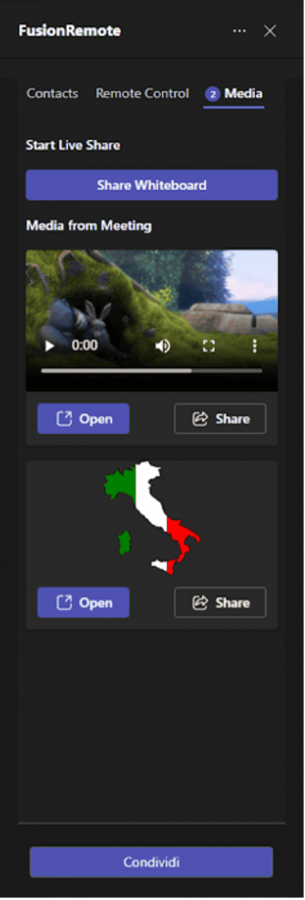
The Media tab offers seamless access to local assets (images, video, pdf) to be shared with the connected worker. During sharing, annotation tools are available to highlight specific parts of a schematics or equipment parts. The Media tab also displays all the media exchanged during a remote assistance session and make them available for review and annotation.
App Information
Get Familiar with the Solution
Jujotech Fusion Remote Expert is a Microsoft Teams app designed to connect frontline workers or remote staff with experts for real-time support. It enables seamless collaboration through chat, video, and content sharing, directly within the Teams interface.
More information: https://www.jujotech.com/frexp-support.html
Demo the Solution
A complete overview and demonstration of Jujotech Fusion Remote Expert can be found on the app’s support page and at this link. It includes key features, supported use cases, and how the app enhances remote support using Microsoft Teams.
App Security & Compliance for IT Admins
• Publisher Attestation/Certification:
Please refer to the Microsoft App Certification page for details on certification requirements: https://learn.microsoft.com/en-us/microsoft-365-app-certification/overview
• Security Evidence:
The app uses Microsoft Graph delegated permissions to enable its support and collaboration features. All data access is scoped to user context, with admin-granted permissions ensuring compliance and security.
Deploy & Adopt for IT Admins
1. Guidance for Graph Permission Consent to Share Data
Fusion Remote Expert Teams App requires that the administrator of your organization gives consent tenant-wide at first installation.
If you are the admin of your organization, follow this guide to consent it and contact Jujotech Support to receive all the information to enable your tenancy.
Below are the Microsoft Graph permissions requested by the app:
|
Permission |
Type |
Description |
Admin Consent Required |
|
Chat.Read |
Delegated |
Read user chat messages |
No |
|
ChatMessage.Read |
Delegated |
Read user chat messages |
No |
|
ChatMessage.Send |
Delegated |
Send user chat messages |
No |
|
Group.Read.All |
Delegated |
Read all groups |
Yes |
|
Group.ReadWrite.All |
Delegated |
Read and write all groups |
Yes |
|
offline_access |
Delegated |
Maintain access to data |
No |
|
OnlineMeetings.ReadWrite |
Delegated |
Read/create user’s online meetings |
No |
|
openid |
Delegated |
Sign users in |
No |
|
profile |
Delegated |
View users’ basic profile |
No |
|
User.Read |
Delegated |
Sign in and read user profile |
No |
|
User.Read.All |
Delegated |
Read all users’ full profiles |
Yes |
|
User.ReadBasic.All |
Delegated |
Read all users’ basic profiles |
No |
2. Guidance for onboarding of a new Tenancy and User
Fusion Remote Expert Teams App requires that the administrator of your organization gives consent tenant-wide at first installation.
If you are the admin of your organization, follow this guide to consent it and contact Jujotech Support to receive all the information to enable your tenancy.
3. How to Add the Application to Teams
To install Jujotech Fusion Remote Expert:
1. Open Microsoft Teams
2. Click on “Apps” in the sidebar
3. Search for “Jujotech Fusion Remote Expert”
4. Click “Add” to install the app
4. How to Pre-pin the App in Teams
To make the app accessible for all users:
1. Go to Microsoft Teams Admin Center
2. Navigate to Teams apps > Setup policies
3. Add “Jujotech Fusion Remote Expert” under Pinned apps
4. Assign the policy to users or groups as needed
5. How to Get Support
Visit the support page for help:
https://www.jujotech.com/frexp-support.html
Fusion Remote Expert Teams App requires that the administrator of your organization gives consent tenant-wide at first installation.
If you are the admin of your organization, follow this guide to consent it and contact Jujotech Support to receive all the information to enable your tenancy.
Below are the Microsoft Graph permissions requested by the app:
|
Permission |
Type |
Description |
Admin Consent Required |
|
Chat.Read |
Delegated |
Read user chat messages |
No |
|
ChatMessage.Read |
Delegated |
Read user chat messages |
No |
|
ChatMessage.Send |
Delegated |
Send user chat messages |
No |
|
Group.Read.All |
Delegated |
Read all groups |
Yes |
|
Group.ReadWrite.All |
Delegated |
Read and write all groups |
Yes |
|
offline_access |
Delegated |
Maintain access to data |
No |
|
OnlineMeetings.ReadWrite |
Delegated |
Read/create user’s online meetings |
No |
|
openid |
Delegated |
Sign users in |
No |
|
profile |
Delegated |
View users’ basic profile |
No |
|
User.Read |
Delegated |
Sign in and read user profile |
No |
|
User.Read.All |
Delegated |
Read all users’ full profiles |
Yes |
|
User.ReadBasic.All |
Delegated |
Read all users’ basic profiles |
No |
Fusion Remote Expert Teams App requires that the administrator of your organization gives consent tenant-wide at first installation.
If you are the admin of your organization, follow this guide to consent it and contact Jujotech Support to receive all the information to enable your tenancy.
To install Jujotech Fusion Remote Expert:
1. Open Microsoft Teams
2. Click on “Apps” in the sidebar
3. Search for “Jujotech Fusion Remote Expert”
4. Click “Add” to install the app
To make the app accessible for all users:
1. Go to Microsoft Teams Admin Center
2. Navigate to Teams apps > Setup policies
3. Add “Jujotech Fusion Remote Expert” under Pinned apps
4. Assign the policy to users or groups as needed
Visit the support page for help:
https://www.jujotech.com/frexp-support.html
How to Use Guide for End User
Once installed:
1. Open the app from the Teams sidebar
2. Start a chat or video session with an expert
3. Use the app’s tools to share content, access meetings, or collaborate live
Detailed guides and demo videos are available on the support site.
How to Get Support
For technical assistance or documentation:
– Website: https://www.jujotech.com/frexp-support.html
– Use the contact form to reach the JujoTech support team
Mobile View
Here some screens of how the app displays in a mobile format